Here are the settings that I prefer to change for Blender. Open the preferences by going to Edit > Preferences.
Interface
Interface > Menus > Open on Mouse Over. I find this feature helpful during mouse-only operation.
Viewport
Display > 3D Viewport Axis Size. I set my axis size to be easier to see, making it easier to check my orientation at a glance. Granted, I use 1440p and 4K monitors.
Keymap
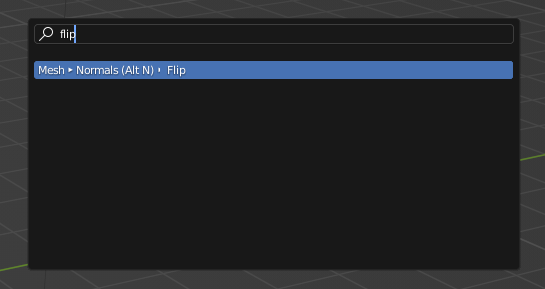
The F3 button opens a menu-search popup in Blender, which is a life-saver. If you don’t have a f-row (or, as with many laptops, your f-row is media keys by default, requiring you to hold the ‘fn’ button down to use), and you aren’t doing animation in Blender, then it can be very helpful to have the spacebar open search.
Tab For Pie Menu
In the Keymap section of preferences, I recommend checking “Tab For Pie Menu”. Instead of the tab key switching between Object and Edit mode, tab will open a pie menu of various modes.
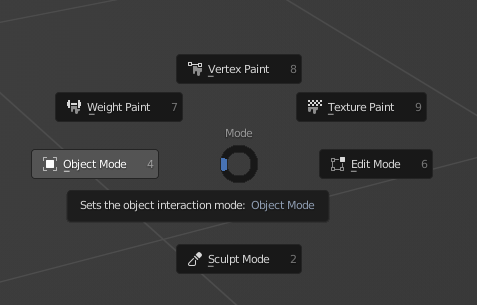
This forces you to be aware of the mode you are switching to. It’s much harder to forget which mode you are in, and you never do the little dance where you tap tab repeatedly trying to reset yourself. It’s also nice when working with workflows like rigging or sculpting.
Performance
Blender generally runs great on most machines, but when rendering high-quality images, we want to make sure we are telling Blender to use the hardware that we have.
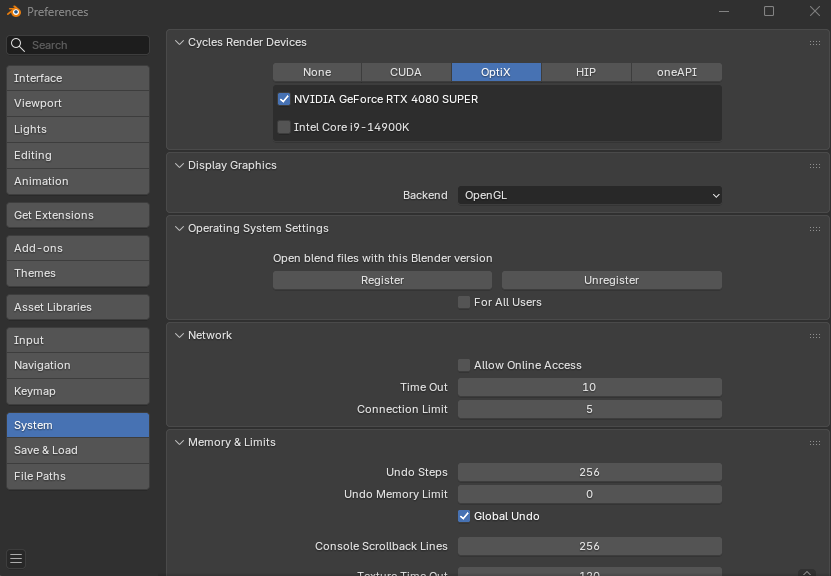
In the System section, check that we have enabled which graphics driver/API you have access to. CUDA, OptiX, HIP, or Metal.
- CUDA requires an NVIDIA card for Windows/Linux
- OptiX is also NVIDIA, and can be used with ‘RTX’ series cards. Prefer this over CUDA if you have both.
- HIP is used by AMD, and AMD cards (RDNA1 architecture) support it.
- oneAPI is Intel, if you have an Intel ARC graphics card, choose this one.
- Metal is Apple, use if you have an apple M-series chips.
You probably only have access to one or none of these, depending on your hardware. If you don’t have any of them, then you have a computer without a graphics card - the CPU (‘Integrated Graphics’) is doing the processing instead of a separate chip. That’s fine. Blender will work the same! (Just slower for Rendering fancy things).
Undo/Redo
In the System section
- Increase the Undo Steps (I set mine to 256)
In the Save and Load section
- Increase the “Save Versions”. When manually saving, it won’t overwrite the previous file, but keep a recent history of files. With extensions “.blend1” and “.blend2”, they’re easily enough to ignore and delete to save space. But when you need it, they’re there. I keep 3 around.
- Increase the number of recent files to show in the “File > Open Recent” menu.
- Turn on Auto-Save. Every x minutes, this will save another version of your project to the Temp directory. If Blender crashes, you can recover your project.